In a world where we all snap endless photos, turning those cherished moments into PDFs might seem like a task for tech wizards. But fear not! It’s easier than figuring out how to pronounce “quinoa.” Whether you’re trying to share vacation memories or organize important documents, converting photos to PDFs on an iPhone is a breeze.
Overview of Making Photos a PDF on iPhone
Making photos a PDF on an iPhone involves several straightforward steps. Users typically rely on built-in tools, making this process convenient for everyone. The Photos app provides a seamless way to select images and convert them into a single PDF document.
In most instances, accessing this feature starts with selecting the desired photos. Afterward, it’s possible to tap the share icon, which appears as a box with an upward arrow. Choosing the “Print” option from this menu allows users to proceed to the next step.
Adjusting the print settings comes next. Users can select the number of copies, page range, and other preferences. Instead of printing, swiping up on the print preview displays the “Save as PDF” option. This step is crucial as it enables users to save their selected images as a PDF file directly on their iPhones.
Saving the PDF is simple. After selecting “Save as PDF,” users can choose a location such as Files or iCloud Drive to store their document. Additionally, this method preserves the original quality of the photos, ensuring that images remain clear and readable.
Overall, creating a PDF from photos on an iPhone is accessible for anyone wanting to share memories or organize documents efficiently. With just a few taps, users can convert their images into a versatile format perfect for sharing via email or other platforms.
Using the Files App
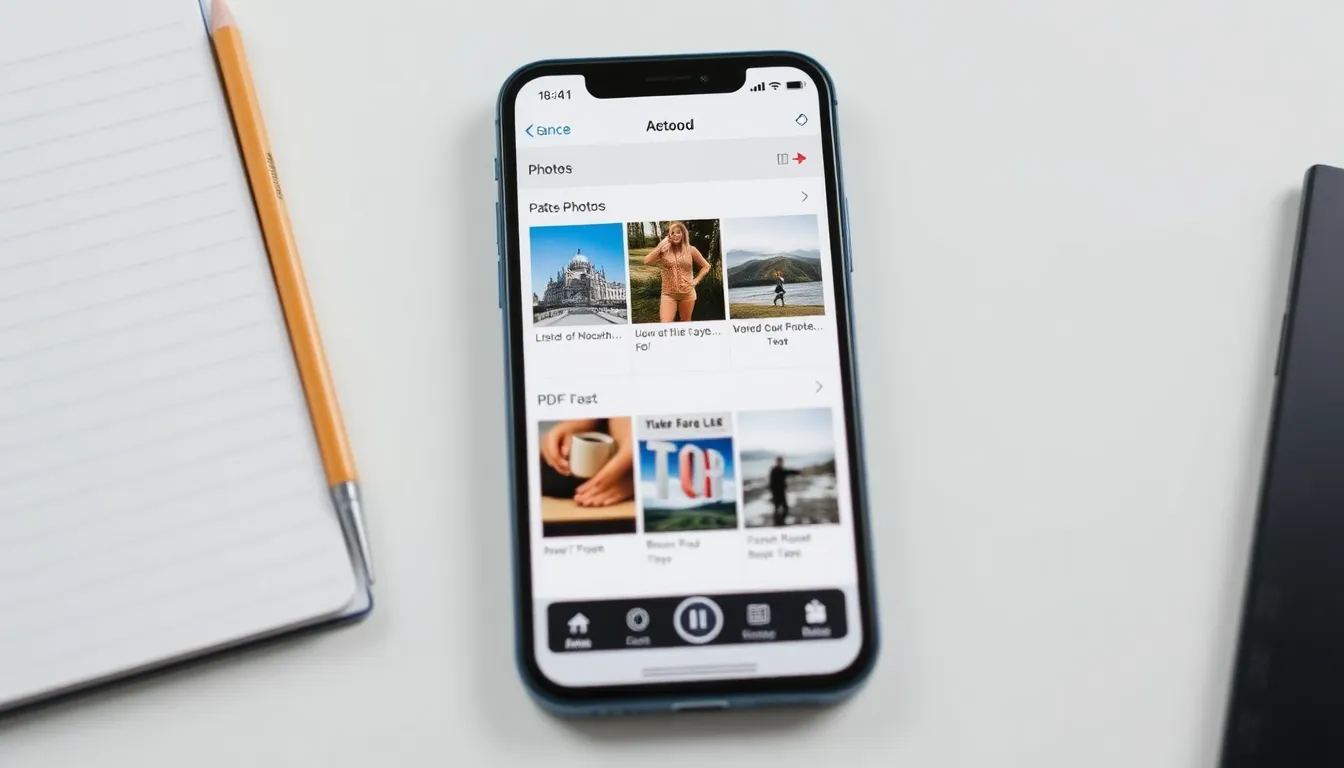
The Files app on an iPhone offers another intuitive method for converting photos to PDFs. Users can navigate through their albums and easily initiate the conversion process.
Step-by-Step Guide
- Open the Files app and locate the photos to convert.
- Tap the “Select” option in the upper right corner to choose multiple images.
- After selections, tap the three-dot icon in the bottom right corner.
- Choose “Create PDF” from the options presented.
- The PDF will generate, allowing users to rename or share the document immediately.
These clear steps simplify converting images, providing a quick alternative to the Photos app.
Tips for Organizing Files
Organizing files in the Files app enhances accessibility. Create folders to categorize PDFs based on themes like travel or projects. Name files descriptively to facilitate easy searching.
Utilizing the “Recently Created” section helps locate newly formed PDFs promptly. Regularly reviewing and deleting unnecessary files maintains a clutter-free environment. Following these strategies ensures efficient file management, paving the way for a seamless experience when sharing PDFs.
Using the Notes App
The Notes app provides another effective way to convert photos into PDFs on an iPhone. Users can create and manage their PDF documents seamlessly, ensuring a smooth process.
Creating a PDF from Photos
To create a PDF from photos in the Notes app, open the app and start a new note. Users can tap the camera icon, then select “Photo Library” to choose images. After selecting the respective photos, tap “Add” to insert them into the note. Users can then share the note by tapping the share icon and selecting “Create PDF.” Following this, the system prompts the user to save the resulting PDF to their preferred location, such as iCloud Drive or email. This method keeps photo integrity intact, providing a high-quality document.
Advantages of Using Notes
Utilizing the Notes app to create PDFs offers several advantages. First, it allows easy organization of photos in a single location. Users can annotate text directly within the note, adding context to each image. Second, it supports collaboration, enabling users to share notes with others for joint editing. Third, integration with iCloud ensures access from multiple devices, making files available anywhere and anytime. Lastly, creating PDFs this way is user-friendly and leverages built-in features of the app, enhancing overall productivity and convenience.
Third-Party Apps for PDF Conversion
Several third-party apps enhance the PDF conversion experience on an iPhone. These applications provide additional features that streamline the conversion process while offering customization options.
Recommended Apps
Adobe Scan and PDF Expert rank among the top choices for converting photos to PDFs. Adobe Scan allows users to capture images directly or import them from the gallery. PDF Expert excels with its editing capabilities, enabling users to annotate and sign PDFs seamlessly. Other notable apps include Tiny Scanner, which provides quick scanning of documents and photographs, and CamScanner, known for its user-friendly interface and robust sharing options.
Key Features to Look For
When selecting a PDF conversion app, prioritize specific features. Look for user-friendly interfaces that simplify navigation. An app with image enhancement tools improves image quality before conversion to PDF. Collaboration features enable sharing and editing among peers, further enhancing its utility. Ensure the app supports multiple file formats for versatility in usage. Integration with cloud storage solutions facilitates easy access and backup of converted documents.
Converting photos to PDFs on an iPhone is a straightforward process that anyone can master. With built-in tools in the Photos and Files apps users can easily create high-quality PDFs for sharing and organizing their images. The versatility of using the Notes app and the availability of third-party applications further enhance the conversion experience.
By utilizing these methods users can efficiently manage their digital files while ensuring that important memories and documents are preserved in a convenient format. Embracing these techniques not only simplifies file sharing but also contributes to a more organized digital life.