Waking up to a blaring alarm can feel like a surprise party thrown by a marching band. While some might thrive on that jarring wake-up call, others prefer a gentler nudge into the day. If you’re tired of feeling like you’re being attacked by your own phone each morning, it’s time to learn how to turn that alarm volume down on your iPhone.
Understanding Alarm Volume on iPhone
Alarm volume on iPhone plays a crucial role in the waking experience. It directly affects how individuals respond to their alarms each morning. A loud alarm can be jarring, while a softer volume allows for a gentler transition from sleep to wakefulness. Adjusting alarm volume impacts not just the sound level but also the overall wake-up routine.
Users typically need to adjust the rise of the alarm volume according to personal preference. The iPhone allows for customization, ensuring each wake-up call aligns with individual comfort levels. Many rely on the device’s settings to fine-tune their alarm sounds.
Settings control both media and alarm volumes separately. Consequently, users might find alarm sounds to remain unexpectedly loud if not adjusted. The Side Volume buttons can modify the volume during an alarm, but specific settings remain independent from general ringtone or media settings.
Notifications and calls generally don’t affect the alarm volume. When an alarm rings, it maintains the configured volume level set in the Clock app. Users wishing for a quieter experience benefit from alterations made directly within Alarm settings. They can select softer tones or change volumes, tailoring the wake-up experience to personal needs.
Lastly, users on iOS can use the Do Not Disturb feature to manage alert interruptions. Understanding these functions empowers individuals to create an optimal waking environment on their iPhones.
Steps to Turn Alarm Volume Down on iPhone
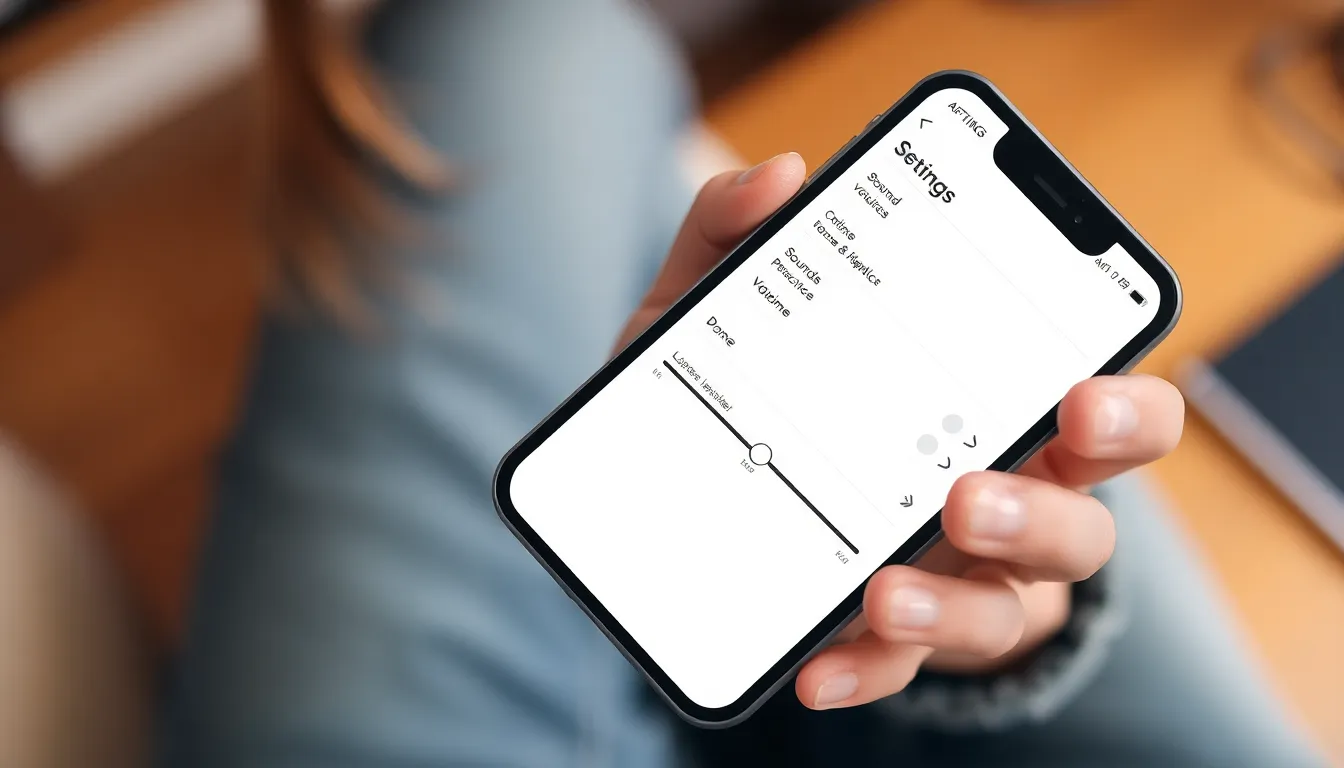
Adjusting the alarm volume on an iPhone enhances the waking experience. Many users prefer a softer wake-up call instead of a startling noise.
Adjusting Volume Through Settings
Access the iPhone settings by tapping the gear icon. Scroll down to Sounds & Haptics and select it. In this menu, the Ringer and Alerts section allows volume adjustments. Users can drag the slider left to lower the volume. For a more precise setting, enable the Change with Buttons option. This feature makes it easier to adjust the ringer and alert volumes quickly.
Using the Side Buttons
Utilizing the side buttons offers quick volume adjustments. Press the volume down button located on the left side of the device. While holding it, the current volume level appears on-screen, providing a visual cue. Users can also adjust the alarm volume while the alarm is sounding. Alarm volume changes can be made without navigating through settings menus.
Additional Tips for Managing Alarm Sounds
Managing alarm sounds on an iPhone involves more than just volume adjustments. Several features can enhance the waking experience.
Using Do Not Disturb Mode
Enabling Do Not Disturb mode silences notifications during the night. This feature prevents disruptions from calls and messages while allowing alarms to sound at their set volume. Users can schedule this mode for specific hours, creating a restful sleep environment without interruptions. Customizing settings ensures that only alarms break the silence, making mornings more pleasant.
Customizing Alarm Tones
Selecting a soothing alarm tone can greatly improve the waking experience. The iPhone offers a variety of sounds, from gentle melodies to nature sounds. Choosing softer tones can promote a pleasant transition from sleep. Users can also upload their favorite songs as alarm tones. Accessing the Alarm settings provides options for customization and personalization, matching sounds to individual preferences for a more enjoyable wake-up call.
Troubleshooting Common Issues
Users may encounter multiple issues when managing alarm volume on an iPhone. First, if the alarm volume stays unchanged after adjustments, checking that the Change with Buttons option is enabled is essential. This option allows users to use the side buttons for immediate adjustments.
Unexpected changes in alarm sound can happen as well. Users must ensure that the desired alarm tone is correctly set in the Alarm settings. When changing to a softer sound, selecting a calm and soothing tone often enhances the waking experience.
Volume changes not taking effect might also stem from device settings. Users should review the Ringer and Alerts slider, ensuring it reflects the preferred volume level. If the volume appears low despite adjustments, turning off or adjusting laws such as Do Not Disturb is crucial, as it may lead to muted alarms.
For those still facing challenges, a quick restart of the iPhone may resolve temporary glitches affecting alarm settings. Restarting can refresh the system. Users generally find that tackling software issues often results in improvements.
Lastly, updating the iPhone’s software is recommended to avoid bugs related to the alarm feature. Regular updates ensure optimal performance and compatibility with the latest features. Keeping the device updated can significantly minimize alarm-related setbacks.
Adjusting the alarm volume on an iPhone is essential for creating a pleasant waking experience. By following the outlined steps users can easily tailor their settings to ensure a gentle start to the day. Customizing alarm tones and utilizing features like Do Not Disturb further enhances the overall experience.
Taking the time to manage alarm settings not only improves mornings but also contributes to better sleep quality. With the right adjustments users can transform their wake-up routine into a more enjoyable and personalized experience. Embracing these tips can lead to a smoother transition from sleep to wakefulness, making mornings a little brighter.